Getting started
Set up chat in a Next.js app.
 View as Markdown
This guide helps you add TalkJS to your Next.js app and create a chat between two users. It uses TalkJS's React Components for a highly customizable chat UI, alongside the JavaScript Data API for data manipulation tasks, such as synchronizing users and conversations.
The guide covers how to install TalkJS, view an existing conversation, create new users and conversations, customize the UI, and properly secure your chat.
To make the most of this guide, you'll need:
- A TalkJS account
- A Next.js app to which you'd like to add TalkJS chat. If you don't have a Next.js app yet, you can use
create-next-appto get started.
This guide uses TypeScript. If you're using plain JavaScript, use .jsx instead of .tsx.
To get started, install @talkjs/react-components and @talkjs/core:
To show a sample conversation, begin by setting up a Chat.tsx component.
First, import the TalkJS components and default theme's CSS.
TalkJS can only run in the browser, so use Next.js's Client Components to render the chat component on the client only. To do this, add 'use client'; to the top of the component file:
Next, add the Chatbox to your Next.js component:
The Chatbox here takes the following props:
appId: Your TalkJS app ID. You can find your app ID on the Settings page of your TalkJS dashboard. For this guide, use the app ID for your test mode, which has built-in sample users and conversations.
userId: An identifier for the current user to send messages as. This example uses the ID of an existing sample user,sample_user_alice.conversationId: An identifier of the conversation that you want to view. This example uses the ID for a built-in sample conversation,sample_conversation.
You can now use the Chat Next.js component anywhere in your app.
To view the chat, run your app:
You should get something like the following:
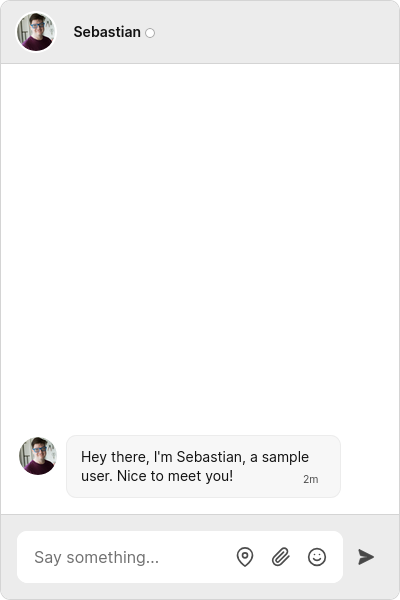
You now have a fully featured chat window running in your app. Try sending a message!
To view the conversation as a different user, change the userId. For example, try switching the userId to sample_user_sebastian to view the other side of the sample conversation.
If the chat window doesn't show up, make sure that you've entered your app ID correctly.
So far in this guide you've used a sample user and conversation. Next, create new users and a conversation between them, and sync them with the TalkJS servers. To do this, use the JavaScript Data API.
Import getTalkSession from the @talkjs/core package into your component, along with React's useEffect:
Add the following code to your component:
This code creates a new TalkJS session, which provides access to a continuous, up-to-date flow of your TalkJS data. It then creates two new users and a conversation between them.
Here's an example with the code so far, so that you can see how it all fits together. The following code adds TalkJS chat to a Chat.tsx Next.js component:
The easiest way to customize a TalkJS component is by using the props and events that the component exposes. See each component’s reference documentation for a list of available props.
As an example if you want to hide the built-in chat header, because it doesn't work well with the rest of your UI, you'd render the chatbox like this:
If you need even more flexibility, TalkJS has an extensive theme system, which lets you adapt the styles, markup, and behavior of the entire chat UI. See the Customization guide for more details.
Once you're using TalkJS in production you'll need to enable authentication, so that only legitimate users can connect to your chat. You'll need a backend server that can generate tokens for your users to authenticate with. See the Authentication docs for more detail on how to set this up.
Use getTalkSession and setToken to register the token:
The token is different each time you connect to TalkJS, so you'll need to call your backend to generate it.
You only need to do this once, before mounting any UI components. Now, any chatboxes you create will use that token to connect.
Once you are happy that your chat is loading without errors when you provide a token, go to the Settings page of your dashboard and enable the Authentication (identity verification) option in the Security settings section. When you enable authentication, only users with a valid token can connect to your chat.
For more ways to customize your chat, see the Chatbox reference docs.