Custom message actions
Add your own actions to the message menu.
 View as Markdown
Some actions in a chat apply to a single message, such as saving it for later or reporting it to a moderator. This guide shows how to add an action to the menu beside each message and run your own code when someone selects it.
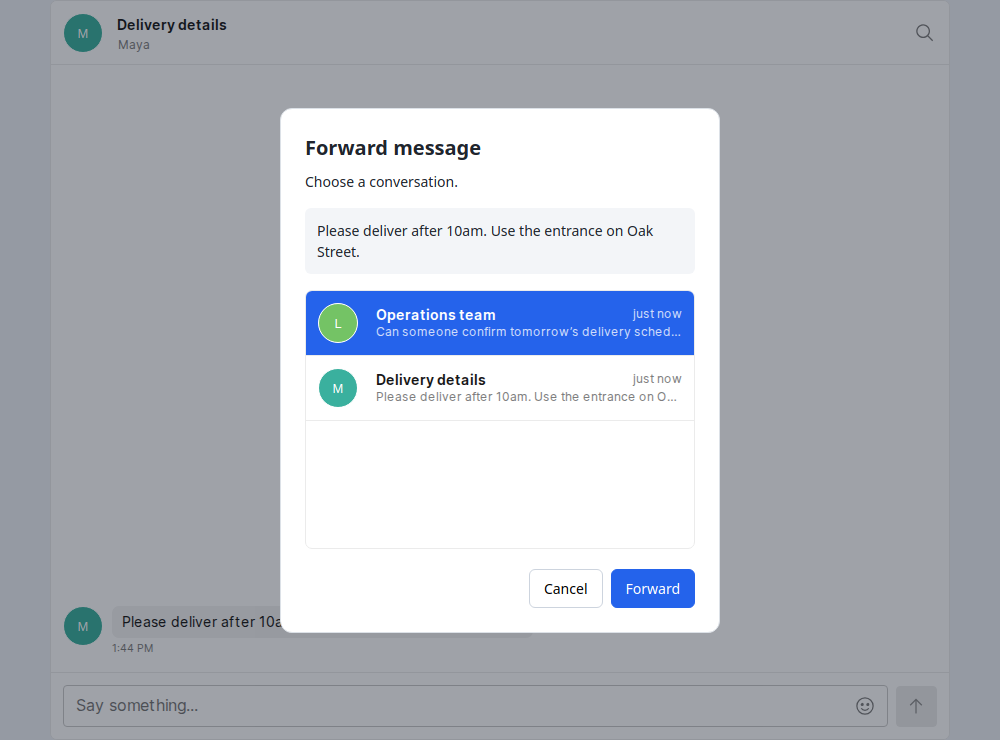
The example below is a delivery app. A dispatcher can forward a customer's delivery instructions to the operations team by choosing Forward from the message menu.
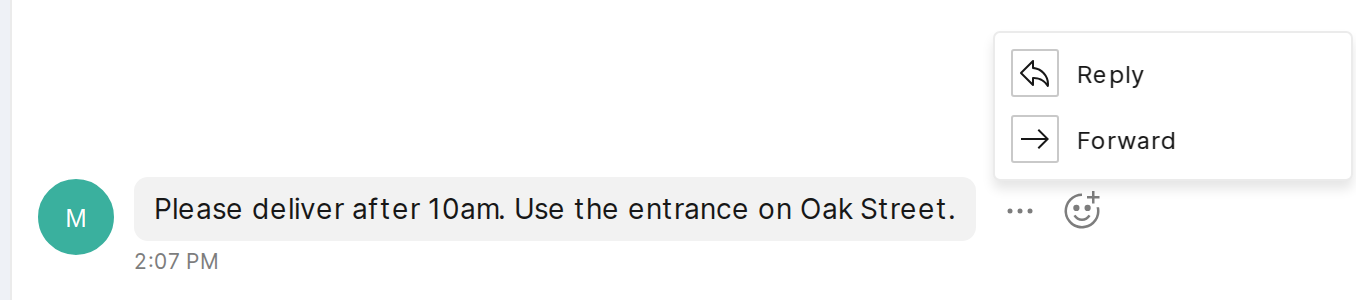
A TalkJS theme lets you replace individual parts of the chat UI. To change what appears in the message menu, supply your own version of its theme component, MessageActionMenu.
The component below shows just the Forward item. When the dispatcher selects it, the menu calls forwardMessage with the customer's message. The app supplies that function through the chatbox's themeCustom option.
import { html, Icon, MenuItem } from '@talkjs/web-components';
export default function CustomMessageActionMenu({ message, common }) {
const themeCustom = common.themeCustom;
// html renders the menu from this template string.
return html`
<div className="t-theme-message-action-menu">
<${MenuItem}
className="t-menu-item"
onSelect=${() => themeCustom.forwardMessage(message)}
>
<span className="t-menu-item-icon-box">
<${Icon} type="arrowRight" className="t-menu-item-icon" size=${16} />
</span>
<span>Forward</span>
<//>
</div>
`;
}To keep Reply, Edit and Delete, add the Forward item to a copy of the default menu. The complete component below includes all four actions.
Complete custom menu component
import { html, Icon, MenuItem } from '@talkjs/web-components';
export default function CustomMessageActionMenu({ message, permissions, common }) {
const { chatbox, t } = common;
const themeCustom = common.themeCustom;
return html`
<div className="t-theme-message-action-menu">
${permissions.canReplyToMessage &&
html`
<${MenuItem}
className="t-menu-item"
onSelect=${() => chatbox.setReferencedMessage(message.id)}
>
<span className="t-menu-item-icon-box"
><${Icon} type="reply" className="t-menu-item-icon" size=${16}
/></span>
<span>${t.REPLY_TO_MESSAGE}</span>
<//>
`}
${permissions.canEditMessage &&
html`
<${MenuItem}
className="t-menu-item"
onSelect=${() => chatbox.setEditing(message.id)}
>
<span className="t-menu-item-icon-box"
><${Icon} type="edit" className="t-menu-item-icon" size=${16}
/></span>
<span>${t.EDIT_MESSAGE}</span>
<//>
`}
${permissions.canDeleteMessage &&
html`
<${MenuItem}
className="t-menu-item t-danger"
onSelect=${() => chatbox.deleteMessage(message.id)}
>
<span className="t-menu-item-icon-box"
><${Icon} type="trash" className="t-menu-item-icon" size=${16}
/></span>
<span>${t.DELETE_MESSAGE}</span>
<//>
`}
<${MenuItem}
className="t-menu-item"
onSelect=${() => themeCustom.forwardMessage(message)}
>
<span className="t-menu-item-icon-box"
><${Icon} type="arrowRight" className="t-menu-item-icon" size=${16}
/></span>
<span>Forward</span>
<//>
</div>
`;
}Set theme.MessageActionMenu on your existing chatbox to use the new menu. Give it a forwardMessage function that opens the picker for the message the dispatcher chose.
<script type="module">
import '@talkjs/web-components';
import CustomMessageActionMenu from './CustomMessageActionMenu.js';
import { openForwardDialog } from './forward-dialog.js';
const chatbox = document.querySelector('t-chatbox');
chatbox.theme = { MessageActionMenu: CustomMessageActionMenu };
chatbox.themeCustom = {
forwardMessage(message) {
openForwardDialog({
appId: chatbox.appId,
userId: chatbox.userId,
message,
});
},
};
</script>The picker shows the conversations the dispatcher can send messages to. When they select the operations team's chat and confirm, the app sends a copy of the delivery instructions there.
Use the JavaScript Data API to send the copy.
npm install @talkjs/coreUse the same app and user as the chatbox. Here, destination is the conversation selected in the picker.
import { getTalkSession } from '@talkjs/core';
const session = getTalkSession({ appId, userId });
await session.conversation(destination.id).send({
content: message.content,
custom: { forwarded: 'true' },
});The operations team sees a message from the dispatcher with the customer's original text and formatting. The custom.forwarded field lets your app recognize the copy as a forwarded message.
The complete picker below keeps the destination selected if the send fails, so the dispatcher can try again.
Complete forwarding picker
import '@talkjs/web-components';
import { getTalkSession } from '@talkjs/core';
export function openForwardDialog({ appId, userId, message, onForwarded }) {
const dialog = document.createElement('dialog');
dialog.className = 'forward-dialog';
dialog.setAttribute('aria-labelledby', 'forward-title');
dialog.innerHTML = `
<h2 id="forward-title">Forward message</h2>
<p>Choose a conversation.</p>
<blockquote></blockquote>
<div class="forward-destinations">
<t-conversation-list style="width:100%;height:100%"></t-conversation-list>
</div>
<p role="alert" class="forward-error" hidden></p>
<div class="forward-dialog-buttons">
<button type="button" data-cancel>Cancel</button>
<button type="button" data-forward disabled>Forward</button>
</div>
`;
const preview = dialog.querySelector('blockquote');
if (message.plaintext) {
preview.textContent = message.plaintext;
} else {
preview.remove();
}
const list = dialog.querySelector('t-conversation-list');
const cancelButton = dialog.querySelector('[data-cancel]');
const forwardButton = dialog.querySelector('[data-forward]');
const error = dialog.querySelector('[role="alert"]');
let destination = null;
let sending = false;
list.appId = appId;
list.userId = userId;
list.conversationFilter = { access: ['==', 'ReadWrite'] };
list.onSelectConversation = ({ conversation }) => {
destination = conversation;
list.selectedConversationId = conversation.id;
forwardButton.disabled = false;
};
cancelButton.onclick = () => dialog.close();
dialog.addEventListener('cancel', (event) => {
if (sending) {
event.preventDefault();
}
});
dialog.addEventListener('close', () => dialog.remove());
forwardButton.onclick = async () => {
if (!destination || sending) {
return;
}
sending = true;
list.inert = true;
cancelButton.disabled = true;
forwardButton.disabled = true;
forwardButton.textContent = 'Forwarding…';
error.hidden = true;
try {
const session = getTalkSession({ appId, userId });
await session.conversation(destination.id).send({
content: message.content,
custom: { forwarded: 'true' },
});
} catch {
error.textContent = 'Could not forward this message. Please try again.';
error.hidden = false;
return;
} finally {
sending = false;
list.inert = false;
cancelButton.disabled = false;
forwardButton.disabled = false;
forwardButton.textContent = 'Forward';
}
dialog.close();
onForwarded?.(destination);
};
document.body.append(dialog);
dialog.showModal();
}TypeScript declarations
In TypeScript projects, save these declarations beside the JavaScript files:
import { html, type MessageActionMenuProps } from '@talkjs/web-components';
export default function CustomMessageActionMenu(
props: MessageActionMenuProps
): ReturnType<typeof html>;import type { ConversationSnapshot, MessageSnapshot } from '@talkjs/core';
export function openForwardDialog(options: {
appId: string;
userId: string;
message: MessageSnapshot;
onForwarded?: (conversation: ConversationSnapshot) => void;
}): void;Styles for the picker
Load these styles in your application's global stylesheet:
.forward-dialog { box-sizing: border-box; width: min(440px, calc(100vw - 32px)); padding: 24px; border: 1px solid #dce1e7; border-radius: 12px; color: #20252d; font: 14px/1.5 system-ui, sans-serif; }
.forward-dialog::backdrop { background: rgb(17 24 39 / 40%); }
.forward-dialog h2 { margin: 0; font-size: 20px; }
.forward-dialog p { margin: 8px 0 16px; }
.forward-dialog blockquote { margin: 0 0 16px; padding: 12px; max-height: 100px; overflow: auto; background: #f3f5f8; border-radius: 6px; white-space: pre-wrap; }
.forward-destinations { height: min(320px, 35vh); }
.forward-dialog-buttons { display: flex; justify-content: flex-end; gap: 8px; margin-top: 20px; }
.forward-dialog button { font: inherit; cursor: pointer; border-radius: 6px; padding: 8px 14px; border: 1px solid #cdd4de; background: white; }
.forward-dialog-buttons button:last-child { background: #2463eb; color: white; border-color: #2463eb; }
.forward-dialog button:disabled { opacity: 0.5; cursor: default; }
.forward-error { color: #b42318; }