


Looking up one chat user in the TalkJS dashboard used to start from a conversation: you opened Activity, found a conversation with that user, and followed their name to their details. A user who wasn't in any conversation had no link to follow.
The TalkJS dashboard now has a Users page that lists the chat users in an app, newest first. You can search by user ID, name, or email address, filter by role, and open a user's details without going through a conversation.
How to find a user on the TalkJS dashboard Users page
To find a chat user in an app:
- In the TalkJS dashboard, select Users in the top navigation.
- Enter a user ID, name, or email address in the search field, or choose a role from the Role menu.
- Select View to open the user's details, or Copy ID to copy their user ID.
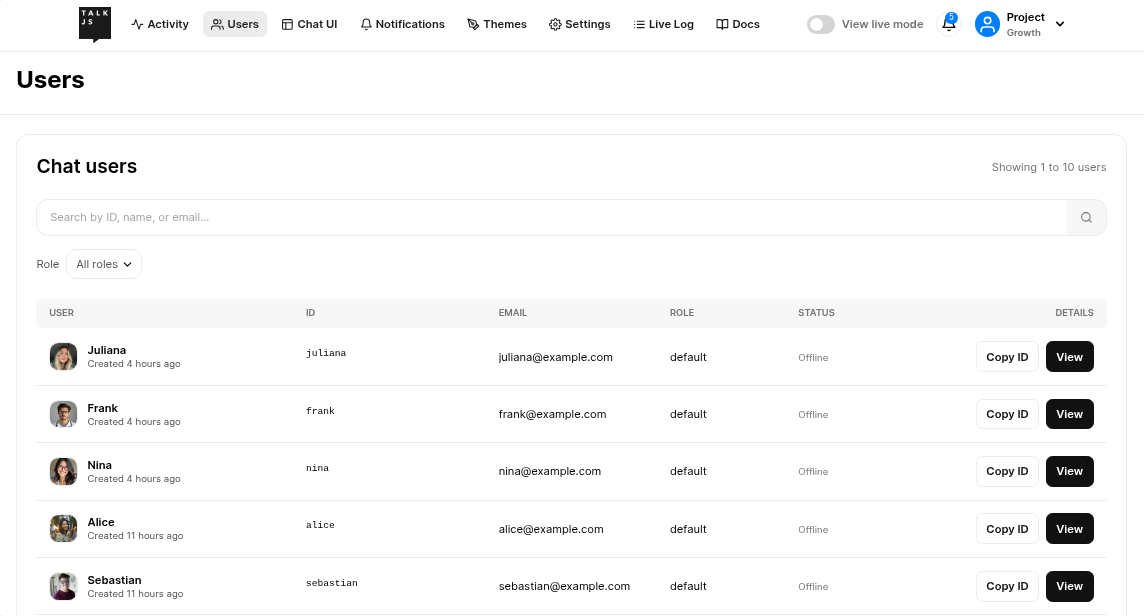
The Users page search matches a user ID only when you enter the whole ID. Names and email addresses match on any part of the value, ignoring case, so an email domain is enough. The search covers all of a user's email addresses, while the table shows the first one.
Edit a chat user on the redesigned user details page
The user details page in the TalkJS dashboard has a new design. Its Profile section lets you edit a user's name, email addresses, phone numbers, photo URL, locale, role, and custom data. A new Conversations section lists the conversations the user belongs to, with their subject, participants, and last activity, and links to each one.
Get started with the TalkJS dashboard Users page
Anyone on your team who can open Activity in the dashboard can also open Users. To learn more, see Users for how TalkJS stores user data, and Activity monitoring for the rest of what you can inspect in the dashboard.


